![IAP_logo_stacked_black.png]](https://5131473.hs-sites.com/hs-fs/hubfs/IAP_logo_stacked_black.png?height=40&name=IAP_logo_stacked_black.png)
Assigning recording privileges to a participant
- In a Zoom Meeting click on Manage Participants.
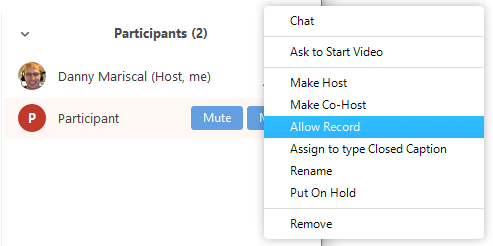
- In the Participants menu navigate to the participant who will be granted recording privileges. Click More next to their name.

- Select the option to Allow Record.
The participant will receive the following notification:
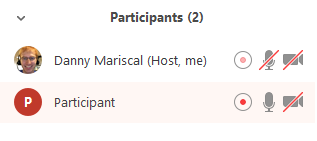
- When a participant is recording, the participant menu will display a recording icon next to the participant's name.
- To disable the participant's ability to record, click More next to the name, then click Forbid Record.

The participant will receive the following notification:
